Currently Trip sits on a server somewhere in the UK. However, this has some drawbacks and so we’re going to move our presence to the cloud. Given the complexity of Trip this is not easy but we can build it separately from the current Trip and then switchover when we’re happy it’s stable.
As part of this process we will be upgrading the underlying search system and rolling out ‘fixes’ to issues such as relevancy.
Artificial Intelligence
This is going to be interesting and there are two main avenues here:
AI Innovation Circle: Even though we’ve hardly advertised this we’ve already had a great selection of volunteers. This group will help guide Trip in harnessing some of the amazing power that is now readily available.
Advanced search is designed to give you much greater control of the search allowing more focussed results.
NOTE: Advanced search is a Pro only feature. If you’re fortunate to have access here follows a quick guide as to how to use it.
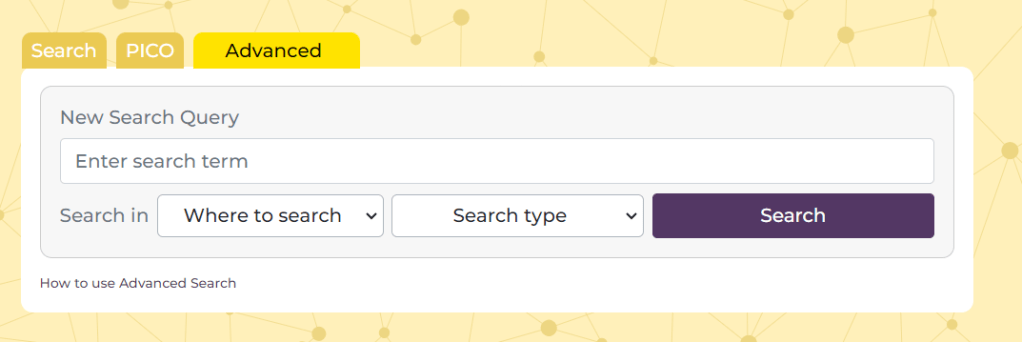
Above the search box on the homepage press the ‘Advanced’ tab and this will take you to a screen that looks like this:
There are 4 main elements:
Search box – this is where you add you term or terms
Where to search – this allows you to select where you want the search terms to occur. There are two options (1) Document text and (2) Title Only. The former is the default and if you want to search in the text of a document you can leave it alone. Also, note, that the document text refers to the text we have in our index, often this is full-text, but sometimes it might simply be the abstract
Search type – this allows more Boolen functions and there are three options (1) All of these words – the default and effectively an ‘AND’ search (2) Any of these words and – an ‘OR’ search (3) The exact phrase – effectively places quotation marks around the added terms.
Search – once you’ve created your search you press the search button.
See this example:
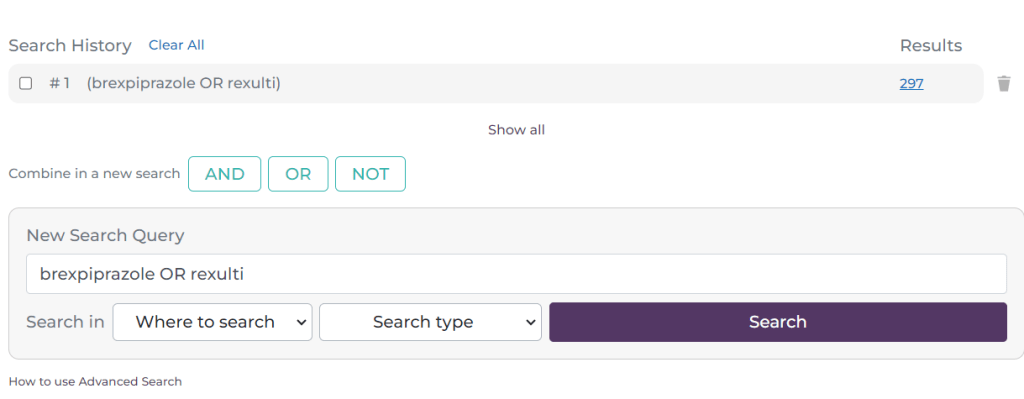
I have added the terms brexpiprazole Rexulti and selected ‘Any of these words’. I have left the ‘Where to search’ untouched. This effectively looks for any document in Trip that contains the word brexpiprazole OR Rexulti. After pressing ‘Search’ I see this:
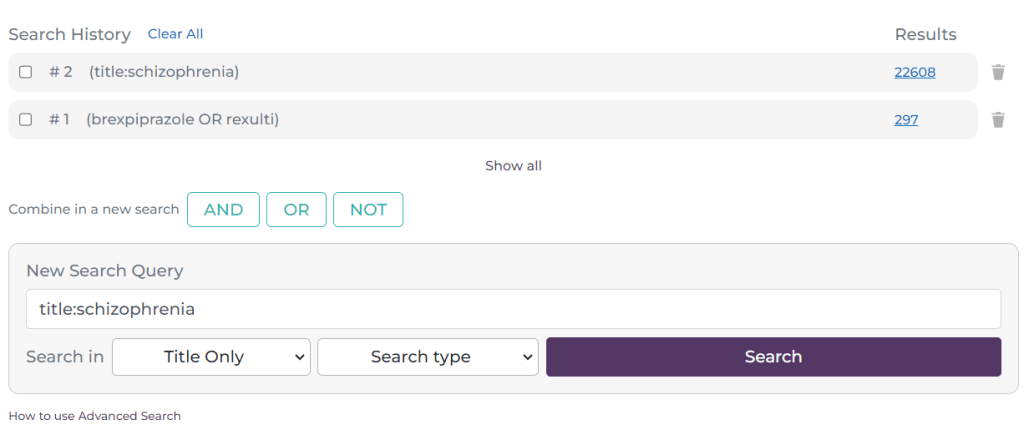
As you will see it has created a line at the top of the search box, representing the first search. This is now #1. I will now do another search:
This time the search (#2) was a search for documents which have schizophrenia in the title. You can build up multiple lines of searching. The next aspect of the search is to combine the lines:
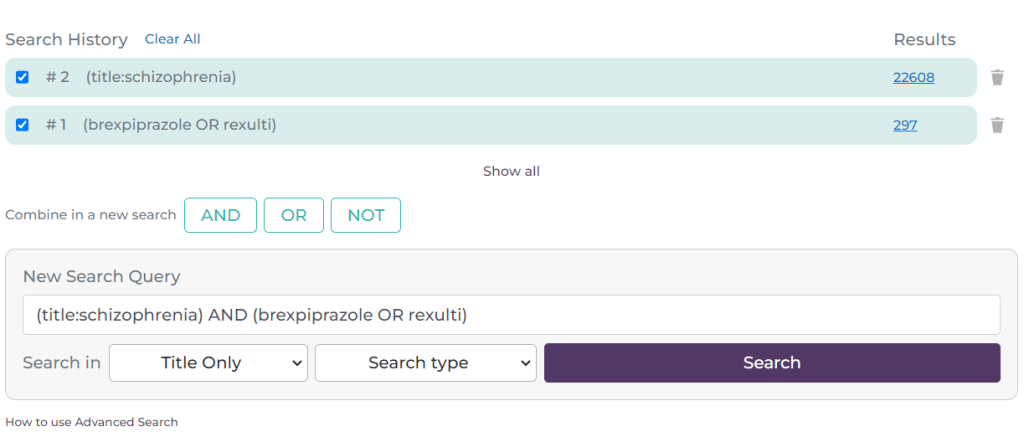
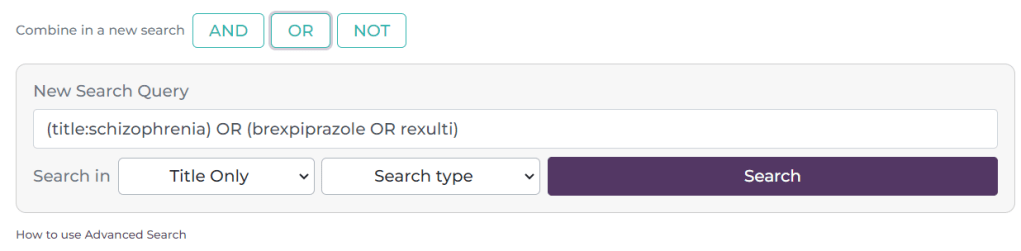
Here, I have selected the tick-box next to #1 and #2 and it has automatically populated the search box with the search. It defaults to an AND search but if you click on the OR or NOT buttons these are inserted e.g.
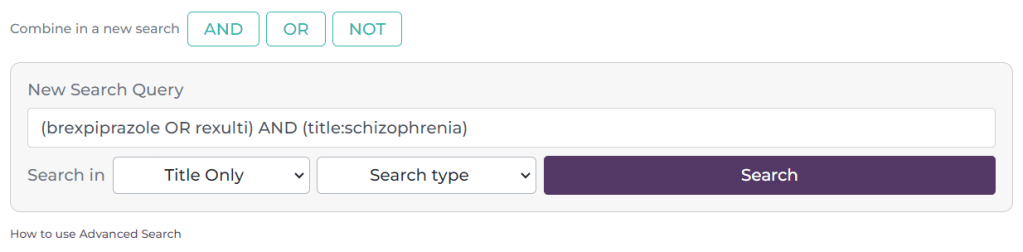
Reverting back to an AND search the results look like this:
The combination is now #3
A few things to note:
You can manually add Boolean phrases, so you don’t need to use drop-downs or the ‘Boolean’ buttons. In other words you can simply type brexpiprazole OR Rexulti. Similar for phrase searching you can simply type “prostate cancer”.
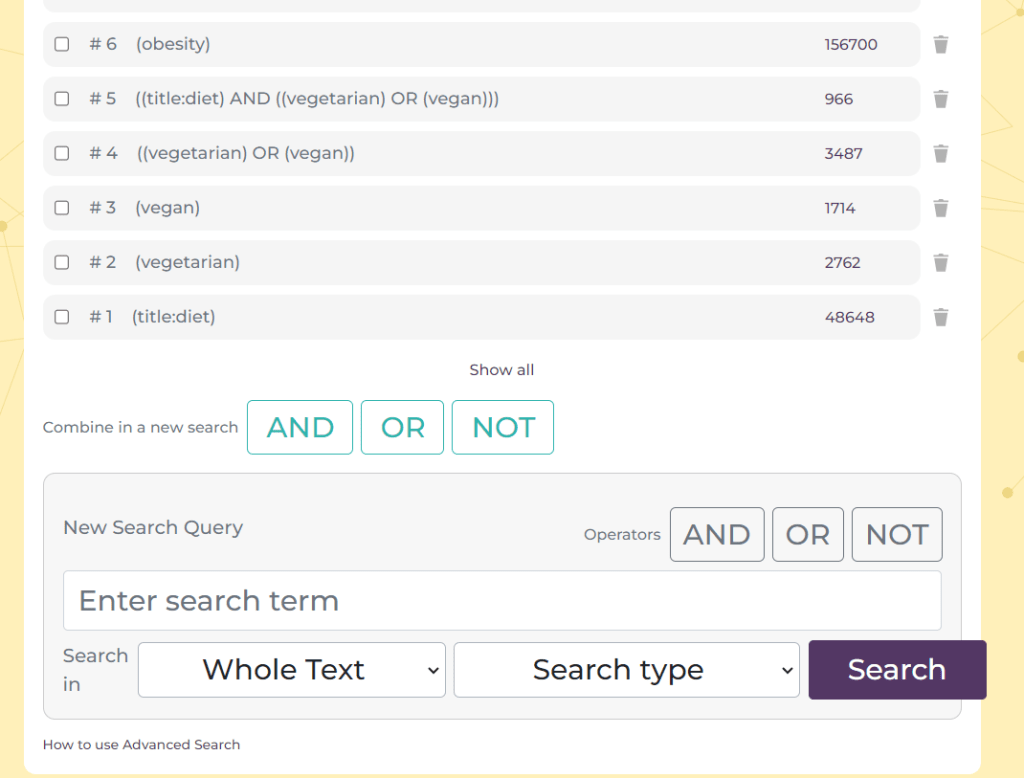
On the right-hand side of each search there is a bin symbol – this allows you to delete a single line of search. At the top there is a ‘Clear All’ link, this removes all the searches.
To see the results for the most recent search simply scroll down. If you want to see a previous set of results, simply click on the hyperlinked number of results on the right hand side e.g. the 64, 22608 or 297.
We default to showing the most recent 10-12 results. If you have done more and need to see them all, click on the ‘Show all’ link at the bottom of the list of searches.
Trip is on the cutting edge, leveraging the transformative power of Artificial Intelligence, with a spotlight on sophisticated large language models (LLMs) like ChatGPT. You might have seen some of our recent forays: LLMs and Clickstream, LLMs again…. and More experiments with LLMs/ChatGPT.
As the AI landscape evolves at lightning speed, we recognise the significant potential of AI to help us deliver for our users. This is where the AI Innovation Circle comes into play – an informal group designed to strategically steer our AI journey to enhance user experience on Trip.
What will the AI Innovation Circle do?
Harness AI’s vast capabilities to significantly elevate the Trip experience.
Provide valuable insights to refine existing concepts, making them even more user-centric.
Identify untapped opportunities where AI can drive innovation.
Foster a collaborative learning environment to fuel collective expertise.
Ensure Trip’s development are problem-led, not technology-led.
Engagement is not anticipated to be arduous and is likely to be managed via the convenience of email and the dynamic spark of occasional Zoom or Google Meets sessions.
Ready to be at the forefront of AI-powered transformation? Reach out to jon.brassey@tripdatabase.com to shape the future of Trip with us!
NOTE: The above was written by ChatGPT (including the group name) after I gave it a rough draft. Not 100% my sort of wording, but in the spirit of the technology I’m going to go with the flow!
Connected articles launched at the weekend and we’ve explained how it works here. But this blog is more about why we’ve introduced it and the benefits.
Every time you search and click on an article the system starts to ‘understand’ your interests. This is important as it can be very difficult to convey, via a handful of search terms, what your intention is. In search, user intention is vitally important. Two users might both search for the same thing e.g. prostate cancer screening yet one is interested from the public health perspective while the other might be interested in the best test to use.
However, while search terms might hide the intention user’s clicks quickly ‘reveal’ their actual intention by clicking on document that they feel might answer the question they have. So, a public health search might click on articles that discuss the cost-benefit of screening at a population level. While someone else might click on articles comparing PSA to DRE.
The Secret Sauce: Co-Clicks, Semantics, and Citations
So, what makes Connected articles so clever? Three words: co-clicks, semantics, and citations.
Co-clicks are like the search engine’s version of “people who bought this also bought…”. We have a huge and unique ‘library’ of co-click data that we can use to help build up connections between articles (see previous blogs Structure in Trip and Ok, I admit it, I’m stuck).
Semantic similarity finds documents that are semantically similar to the ones you’ve already clicked on. You click on an article about cost-benefit of screening at a population level, it finds other similarly worded articles.
Our system takes the data available from the above sources and combines them using a special algorithm to ensure the most closely connected appears top.
Ok, so why should you care?
You’ll find articles your keyword search might have missed. You might have searched for atrial fibrillation but a closely related – and useful – article is on arrythmias. Different clinical terms but closely connected.
You’ll save time. Results more focussed on your interests will mean fewer articles to look at to obtain the answers you need.
Safety! Whatever search you’ve done – superficial or in-depth – Connected articles is a really useful tool to ensure you’ve not missed really important articles!
An example of using Connected articles
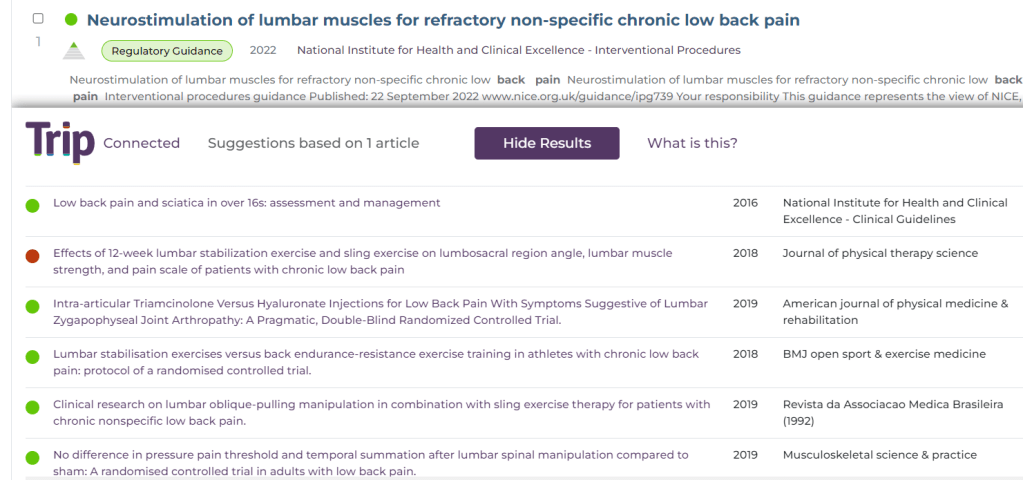
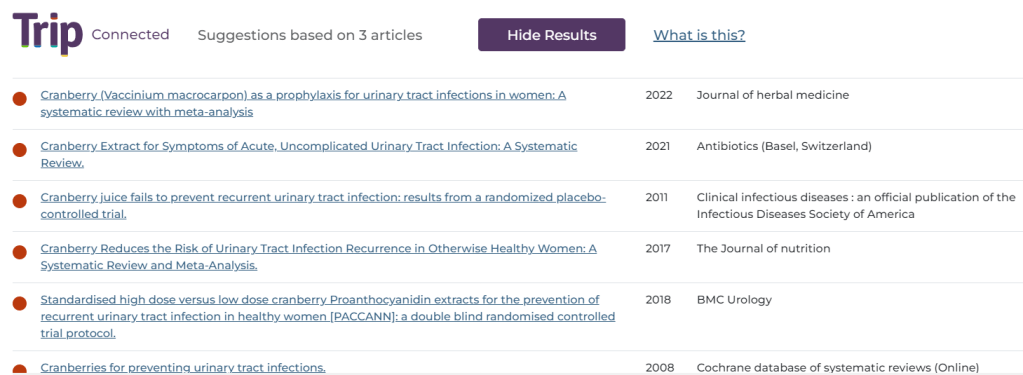
Using a search for urinary tract infections we clicked on three articles on a similar topic (can you guess what that might be?) below are the top 6 results, but you can scroll down through the results and see many more:
And the topic, I’m sure you can see it’s concentrated the results down to cranberry juice and UTIs!
Convinced? Curious? Sceptical? Give Connected articles a try and tell us what you think. Find an unexpected article that delighted or surprised you? Share it with us! We want you to be delighted!
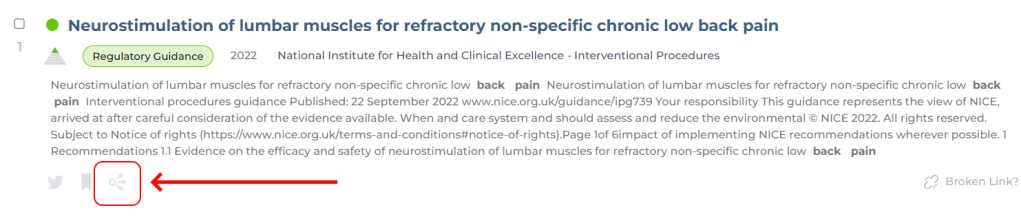
Connected articles is a system that is designed to find articles similar or linked to articles a user has already clicked on. This can be incredibly useful as users often search in an imprecise way and if they only look at a page or two of results they may miss some important articles. Connected articles looks for connections between document and helps unearth hidden/missed gems!
Connected uses three sources of information to find the connections:
Clickstream data – when a user searches and clicks on more than one document, we infer that the documents clicked are connected by the users intention.
Citation data – for every document clicked we explore articles that the article cited (as references in the document) and we also looked for articles that have cited document as well. This is also known as forward and backward citation searching. This data is restricted to articles that have a DOI (which is over 95%)
Related articles – we use the data from PubMed’s “similar articles” feature and grab the top 20 articles deemed to be most semantically similar to the article(s) clicked.
We take these three types of connections and combine them, using a special algorithm, to create a list of results. Those deemed most closely connected – using all three sources – appear at the top:
NOTE: Free users of Trip only see the first three results. Pro subscribers get no such restriction.
Connected articles is an amazing tool to unearth closely connected articles to the articles a user has already clicked. It uses three types of connection data:
Clickstream/co-click data
Citations (forward and backward)
Semantic similarity
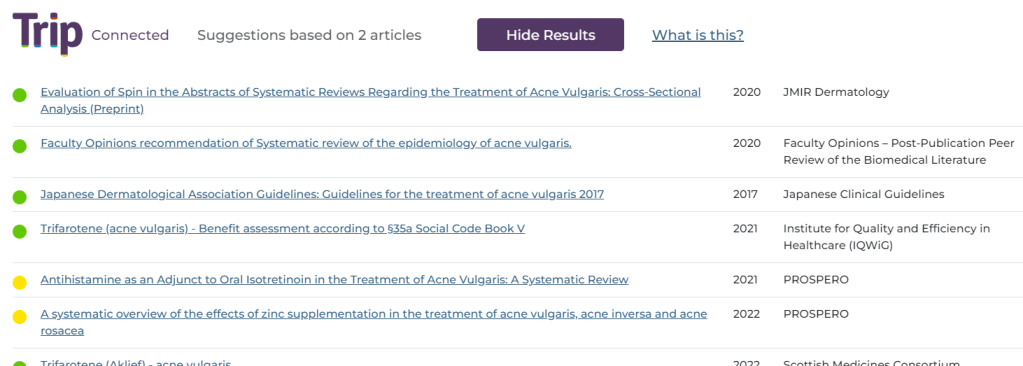
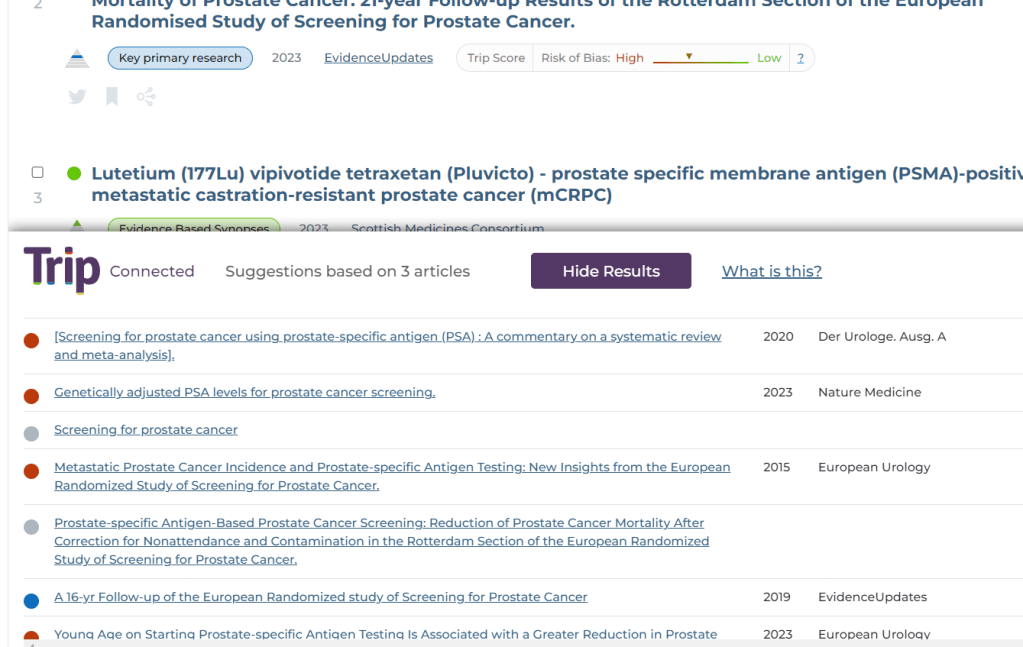
For every article opened by a user we look for connections from any of the three sources mentioned above. These are then algorithmically combined and presented to the user. The results will look like this:
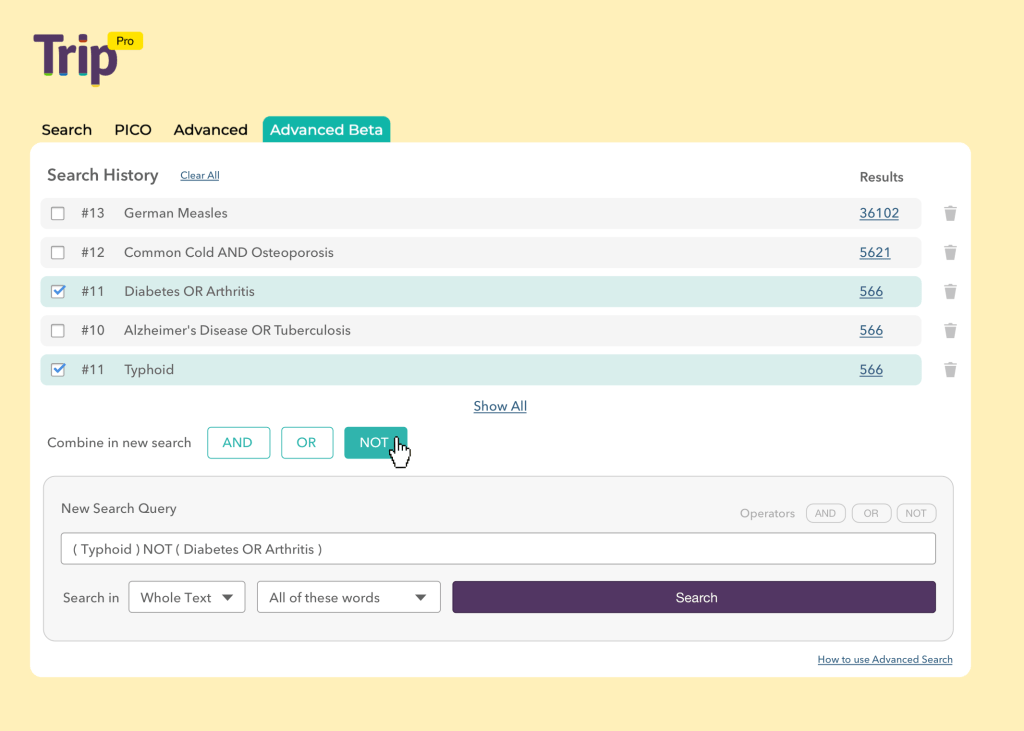
We’ve been working on the advanced search for a while now and it has undergone one round of testing in an un-designed format. Based on feedback we’ve arrived at something like this:
The bottom half is where you build individual lines of queries and these appear at the top of the page. You then combine them using the AND, OR and NOT commands.



 Trip Database Blog
Recent Comments