Advanced search is designed to give you much greater control of the search allowing more focussed results.
NOTE: Advanced search is a Pro only feature. If you’re fortunate to have access here follows a quick guide as to how to use it.
Above the search box on the homepage press the ‘Advanced’ tab and this will take you to a screen that looks like this:
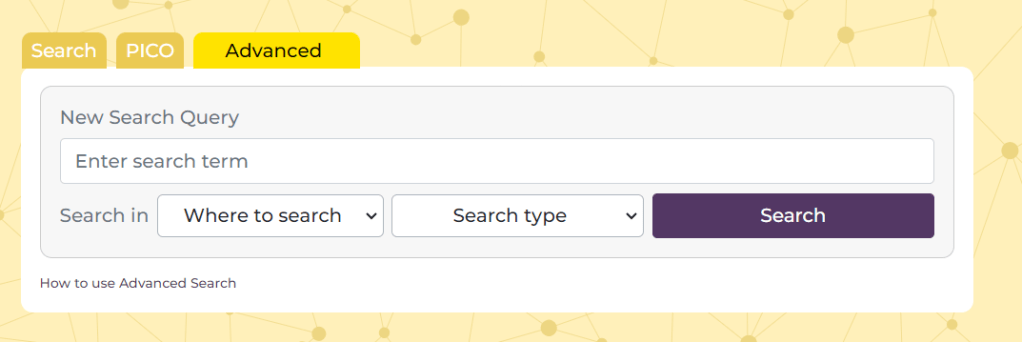
There are 4 main elements:
- Search box – this is where you add you term or terms
- Where to search – this allows you to select where you want the search terms to occur. There are two options (1) Document text and (2) Title Only. The former is the default and if you want to search in the text of a document you can leave it alone. Also, note, that the document text refers to the text we have in our index, often this is full-text, but sometimes it might simply be the abstract
- Search type – this allows more Boolen functions and there are three options (1) All of these words – the default and effectively an ‘AND’ search (2) Any of these words and – an ‘OR’ search (3) The exact phrase – effectively places quotation marks around the added terms.
- Search – once you’ve created your search you press the search button.
See this example:

I have added the terms brexpiprazole Rexulti and selected ‘Any of these words’. I have left the ‘Where to search’ untouched. This effectively looks for any document in Trip that contains the word brexpiprazole OR Rexulti. After pressing ‘Search’ I see this:
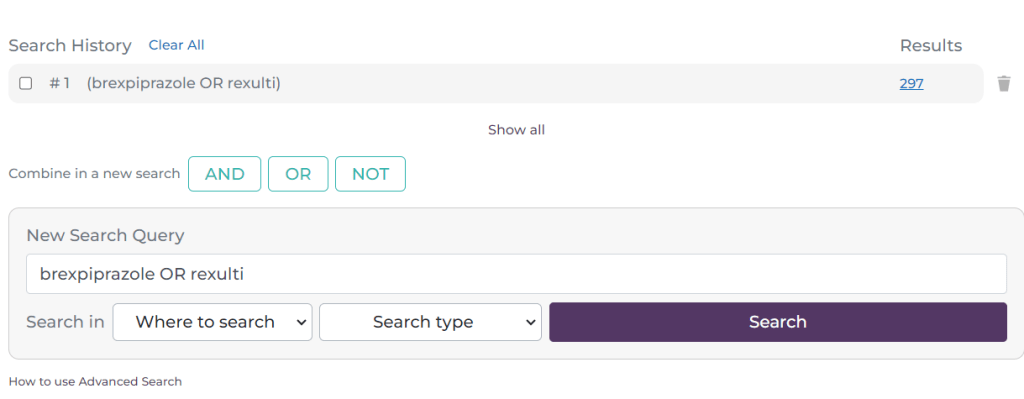
As you will see it has created a line at the top of the search box, representing the first search. This is now #1. I will now do another search:
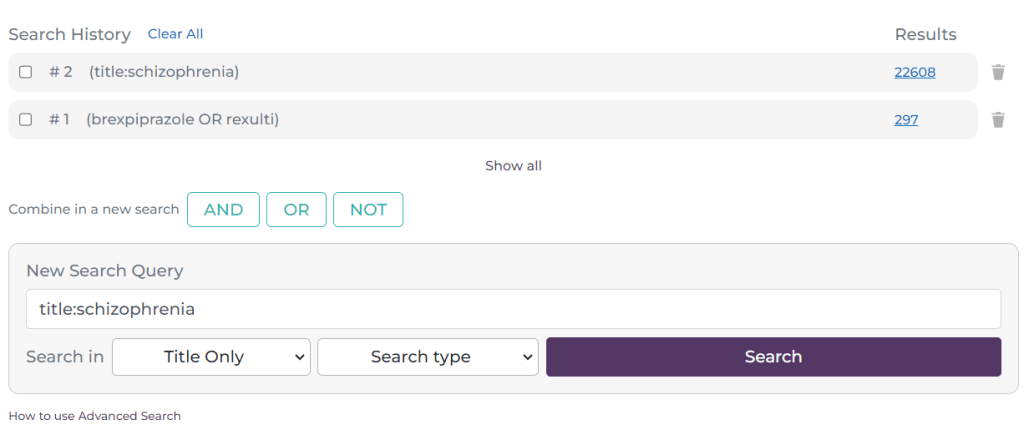
This time the search (#2) was a search for documents which have schizophrenia in the title. You can build up multiple lines of searching. The next aspect of the search is to combine the lines:
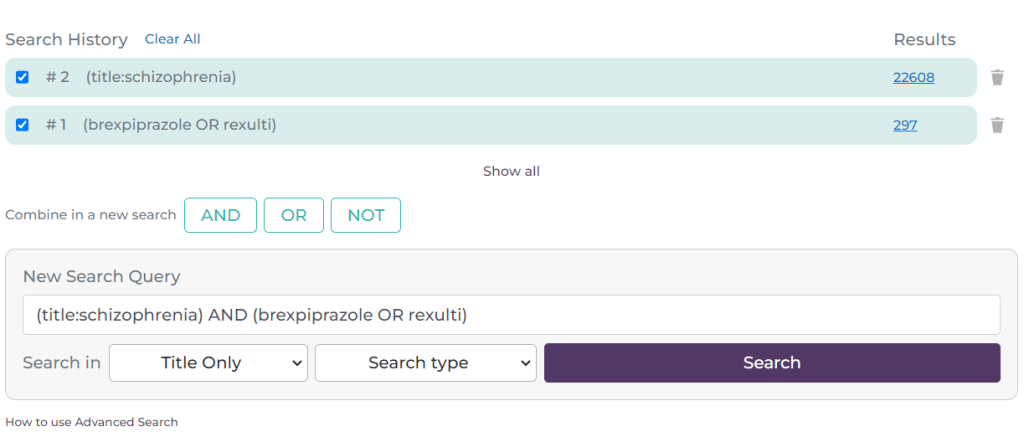
Here, I have selected the tick-box next to #1 and #2 and it has automatically populated the search box with the search. It defaults to an AND search but if you click on the OR or NOT buttons these are inserted e.g.
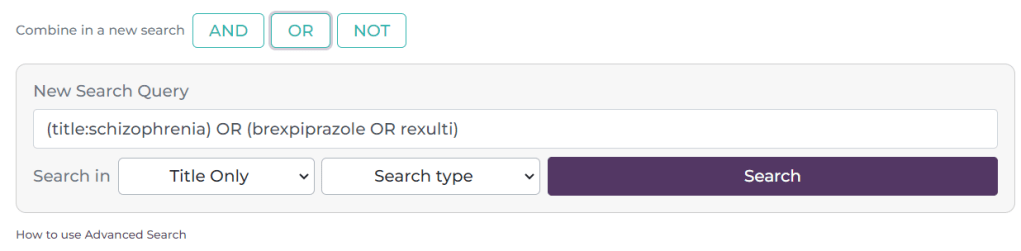
Reverting back to an AND search the results look like this:
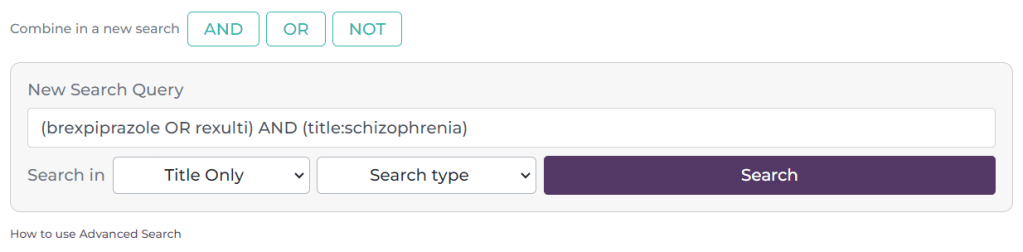
The combination is now #3
A few things to note:
- You can manually add Boolean phrases, so you don’t need to use drop-downs or the ‘Boolean’ buttons. In other words you can simply type brexpiprazole OR Rexulti. Similar for phrase searching you can simply type “prostate cancer”.
- On the right-hand side of each search there is a bin symbol – this allows you to delete a single line of search. At the top there is a ‘Clear All’ link, this removes all the searches.
- To see the results for the most recent search simply scroll down. If you want to see a previous set of results, simply click on the hyperlinked number of results on the right hand side e.g. the 64, 22608 or 297.
- We default to showing the most recent 10-12 results. If you have done more and need to see them all, click on the ‘Show all’ link at the bottom of the list of searches.
Any questions or need for further clarification? Drop us a line: advanced.search@tripdatabase.com

 Trip Database Blog
3 Pingback